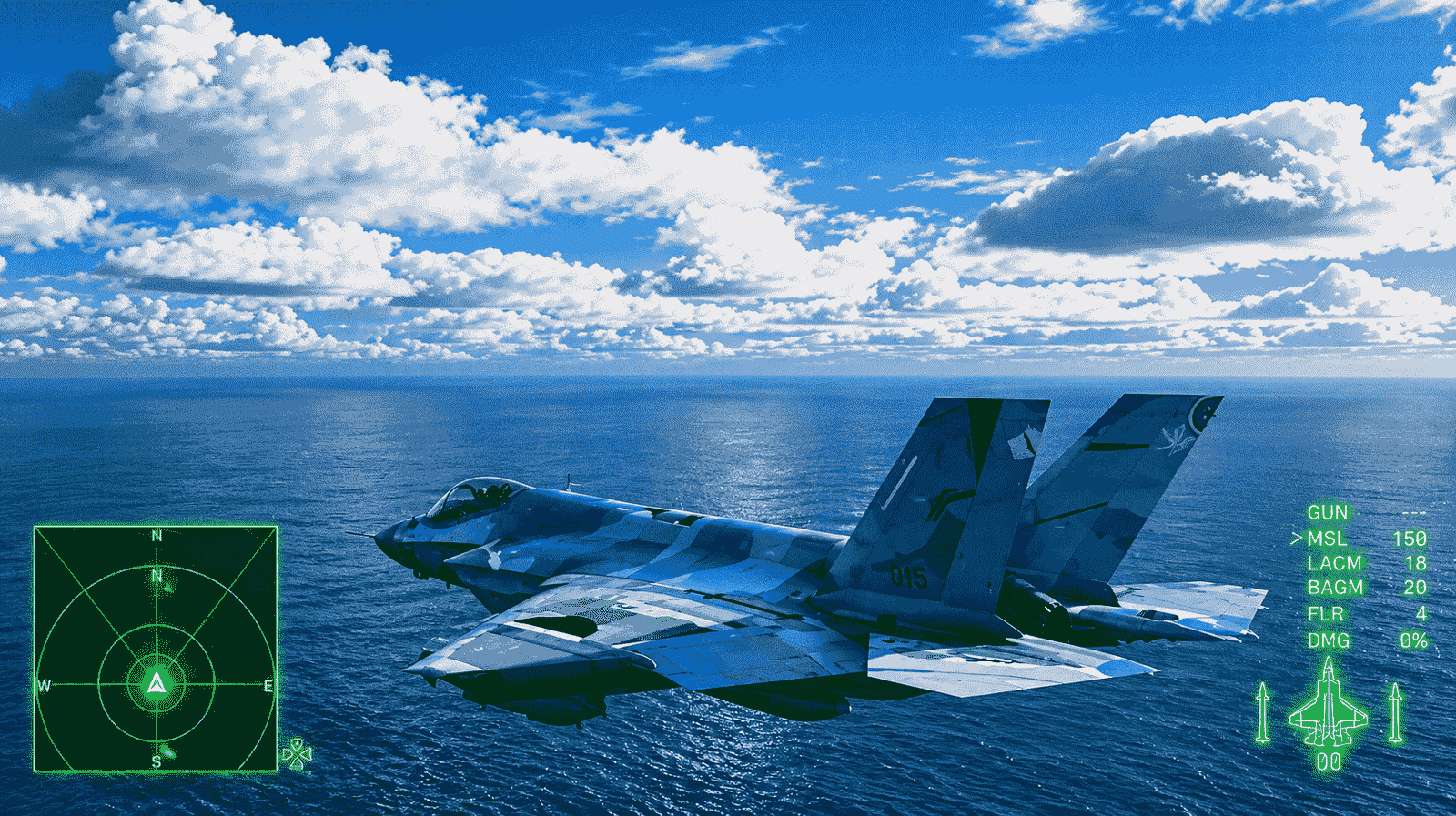

If you’ve been digging through menus in Ace Combat 8: Wings of Theve trying to find where skin customization lives, there’s a simple reason you haven’t found it: it isn’t there yet. Bandai Namco deliberately locks this entire system behind the campaign’s ending, which means no amount of searching through the hangar on a first playthrough is going to turn up the option. Here’s exactly what it takes to unlock it, and everything else worth knowing about how skins work across the game.
The Short Version
You need to finish the full campaign, including the final mission, Mission 30 — Song of Wings, and let the credits finish rolling. Once that happens, a new menu called Aircraft Sets appears, and the path to actually applying a skin runs through Mission Menu → Aircraft Sets → Edit Aircraft Set → Select Skin.
That’s the whole answer in a sentence, but there’s a lot more worth knowing if you want to make the most of the system once it’s unlocked — including where skins actually come from, a faster way to browse them, and how differently Campaign and the game’s online mode handle cosmetics.
Why It’s Locked Until The Very End
It’s a deliberate design choice rather than a bug or an oversight. Everything you unlock through achievements, mission objectives, and defeating certain enemies during your first campaign run gets tracked and saved, but none of it becomes usable until that first full playthrough is actually complete. Essentially, the game wants your first run through the story to happen with the default liveries intact, saving the full customization suite as a reward for players who’ve actually finished the campaign rather than something to tinker with from hour one.
If you’re mid-campaign and can’t find Aircraft Sets anywhere in your menus, that’s completely expected. It isn’t hidden somewhere you’ve missed — it genuinely doesn’t exist in your game yet.
Clearing Mission 30
The mission that unlocks everything, Song of Wings, has its own specific challenge worth knowing going in. You’re tasked with protecting the allied carrier Endurance while a submerged enemy submarine launches repeated missile barrages at it, striking whenever it finds an opening. The smart loadout here is a fast, precise fighter equipped with air-to-ship special weapons, since your main job is sinking that submarine quickly before it can land another hit on the carrier.
Once you clear the mission and sit through the ending cutscenes, Aircraft Sets shows up in Campaign mode for good. From that point forward, every skin you’ve legitimately earned throughout your playthrough becomes something you can actually apply.
Applying A Skin Through Aircraft Sets
The full customization menu works similarly to the loadout system used in the game’s online mode, and the process itself is straightforward once you’re in:
- Open Aircraft Sets from the Mission Menu.
- Pick the Aircraft Set slot you want to edit, then select the aircraft tied to that slot.
- Choose Edit Aircraft Set, then Select Skin, and pick from whichever liveries you’ve unlocked for that specific airframe.
Not every skin behaves the same way once applied. Some completely repaint the aircraft and swap out the emblem alongside it, while others leave room for more granular customization, letting you mix and match emblems separately from the base livery. A handful are tied directly to the story — the Su-57 Narrative Skin is a good example, since its appearance actually shifts as the campaign progresses rather than staying static.
One small bonus worth knowing: customizing a skin or emblem in Campaign mode unlocks the Plane Coordinator trophy, which doubles as a handy confirmation that your change actually registered correctly.
A Faster Way To Browse: The Hangar D-Pad Trick
Once you’ve cleared the campaign, there’s a quicker method for casually flipping through skins without diving into the full menu every time. With your aircraft visible in the hangar, pressing left or right on the D-pad cycles through every livery you’ve unlocked for that specific plane, showing it off from a low, ground-level camera angle as you scroll.
The catch is that this quick-browse view doesn’t display each skin’s name while you’re cycling through, so it’s better suited for casually eyeballing your options rather than hunting down one specific livery by name. If you already know exactly which skin you want, going through Aircraft Sets → Edit Aircraft Set → Select Skin remains the more precise route.
Where Skins Actually Come From
Not every livery unlocks the same way, and knowing the source behind each one saves a lot of confusion when a specific skin you’re after doesn’t show up where you expect it. There are four distinct sources:
- Campaign progress — finishing missions or hitting specific objectives along the story
- Defeating named enemy Aces — unlocks the paint scheme tied to that Ace’s specific aircraft type
- Ace Combat Online — skins purchased through the in-game store or earned by completing Online missions
- Edition-specific cosmetic sets — bonus liveries tied to special editions of the game
The Named Ace route deserves its own callout, since it’s the one players most often miss entirely. These encounters only appear on Veteran difficulty or higher, and in most cases, a specific condition has to be met during the mission for the Ace to even show up in the first place. Even after you’ve shot one down, you still need to complete the mission itself to lock in the record and the associated skin — bailing out of the sortie immediately after the kill means that unlock simply won’t register.
Deluxe Edition And Cosmetic Set Skins
If you picked up the Deluxe Edition or a separate Cosmetic Set, you’re entitled to two additional squadron liveries bundled together:
| Skin | Aircraft |
|---|---|
| Mobius Squadron 25th Anniversary | F-4E |
| Team Zvezda | F/A-18C |
Both of these work immediately in Ace Combat Online with their matching aircraft, no waiting required. Campaign mode is a different story — even with the edition or cosmetic set purchased, these skins stay locked in Campaign until you’ve completed every mission, same as everything else gated behind the story’s end. If you own either package and don’t see the liveries show up during an early playthrough, that’s completely normal. It’s not a failed unlock; it’s just the same campaign-completion gate applying to edition content as well.
How Online Handles Skins Differently
Ace Combat Online runs its own separate customization system, covering skins, emblems, and weathering effects, all applied through the Online hangar rather than the Campaign menus. The navigation path is genuinely different from the Aircraft Sets steps used in Campaign, so don’t expect the same menu structure to carry over between modes.
Progression and save data stay completely separate between Campaign and Online as well. A handful of cosmetics do support cross-mode use — the Mobius Squadron and Team Zvezda liveries mentioned above being the clearest examples — but outside of skins explicitly flagged for both modes, assume anything you unlock in Online stays exclusive to Online, and vice versa for Campaign unlocks.
Quick Recap
- Skin customization stays locked until you finish the full campaign, ending with Mission 30 — Song of Wings
- Once unlocked, apply skins via Mission Menu → Aircraft Sets → Edit Aircraft Set → Select Skin
- In the hangar, use the D-pad left/right to quickly browse unlocked liveries for a visible aircraft
- Skins come from campaign progress, defeating Named Aces on Veteran+ difficulty, Ace Combat Online, or edition-specific bonus content
- Deluxe Edition and Cosmetic Set skins work immediately in Online but still require a finished campaign to use in Campaign mode
- Online and Campaign track skins and progression separately, with only a few cosmetics shared across both
Once you’ve cleared the story once, the whole system opens up fast — so if you’re chasing a specific livery for a favorite airframe, it’s worth running back through Veteran difficulty encounters with Named Aces once customization is unlocked, rather than hunting for them blind on your first playthrough.